Most books start life as a Word document, and most formatting problems in ebooks come from habits that look fine on paper but break on a phone: spaces for indents, blank lines for spacing, manual line breaks. The good news is that a little preparation in Word makes conversion clean and predictable. This guide walks through it step by step.
How ebooks differ from print
An ebook isn't a set of pages. It is text that reflows to fit whatever screen it is read on, at whatever font size the reader chooses. That changes how you format:
| Ebook | Print book | |
|---|---|---|
| Pages | None; text reflows | Fixed pages at a trim size |
| Page numbers, headers | Not used | Used |
| Fonts | Readers usually choose their own | You choose and embed |
| Margins | Set by the reading app | Set by you, with a larger inside margin |
| File | EPUB |
Because the reader controls so much, the aim of ebook formatting is structure, not appearance: tell the reading app what is a chapter title, what is body text and what is a scene break, and let it do the rest.
Step 1: make a clean copy
Work on a copy of your manuscript, never the original. Then turn on Word's formatting marks (the ¶ button), so you can see every tab, space and paragraph break.
Step 2: remove manual formatting
These habits cause most ebook problems. Use Find and Replace to fix them:
| Problem | Why it breaks | Fix |
|---|---|---|
| Tabs or spaces for indents | Indents look uneven or vanish | Delete them; use a first-line indent in the style |
| Double spaces after full stops | Uneven gaps in reflowed text | Replace two spaces with one |
| Blank lines for spacing | Random gaps, empty screens | Delete; use paragraph spacing in styles |
| Manual line breaks (Shift+Enter) | Lines break mid-sentence on small screens | Replace with normal paragraph breaks |
| Text boxes and floating images | Often lost or misplaced | Replace with inline text and images |
| Multiple fonts and sizes | Inconsistent look | Clear direct formatting; let styles decide |
Tip: in Find and Replace, search for ^t to find tabs and ^l to find manual line breaks.
Step 3: apply styles
Styles tell the converter what each piece of text is. Keep it simple:
- Normal: body text. Set a first-line indent of about 0.25 to 0.3 inches, and no space before or after paragraphs.
- A "First paragraph" style (optional): the same as Normal with no indent, used for the first paragraph of each chapter and after scene breaks.
- Heading 1: chapter titles. Converters use Heading 1 to build the table of contents.
- Heading 2: parts or sections, if your book has them.
- A centred style for scene breaks, such as a centred asterisk or ornament.
Avoid bolding and enlarging text by hand to make headings. It looks like a heading but isn't one, so it won't appear in the table of contents.
Step 4: chapters and page breaks
Insert a page break (Ctrl+Enter) before every chapter heading, or set Heading 1 to start on a new page. Most converters start a new section at each page break or Heading 1, so each chapter begins at the top of a screen.
Step 5: images
- Insert images in line with text, not floating.
- Use JPG for photos and PNG for line art, at a sensible size: large enough to look sharp, not so large that the file becomes huge.
- Remember delivery costs: on Amazon's 70% option, large files cost more per sale.
- Add alt text (right-click the image) so readers using screen readers know what it shows.
Step 6: front and back matter
Keep front matter short, because ebook samples and previews show the opening, and readers want the story quickly.
| Front matter | Back matter |
|---|---|
| Title page | A short thank-you and review request |
| Copyright page | The next book in the series, with a link |
| Dedication (optional) | Also by the author |
| Table of contents (often generated) | Newsletter invitation |
| About the author |
Put links in back matter, where engaged readers go looking for your next book.
Step 7: convert to EPUB
Word has no reliable built-in EPUB export, so use one of these:
| Tool | Cost | How it works | Good for |
|---|---|---|---|
| Calibre | Free | Converts a .docx to EPUB on your computer | Authors comfortable with a few settings |
| Reedsy Studio | Free | Import your Word file, then export EPUB and print PDF | Simple, clean books |
| Google Docs | Free | Open the .docx, then download as EPUB | Quick, basic conversions |
| Draft2Digital formatter | Free to use | Upload Word, download the formatted EPUB | Attractive templates |
| Vellum or Atticus | Paid | Import Word, style it, export EPUB and print PDF | Polished, genre-appropriate design |
| Kindle Create | Free | Formats for Amazon | KDP-only books |
Whichever you choose, the styles you applied in Word are what make the conversion clean.
Step 8: check your EPUB
- Open it in two reading apps, such as Apple Books and Google Play Books, or Calibre's viewer.
- Check the table of contents: every chapter listed, every link working.
- Change the font size and check that text reflows cleanly.
- Try dark mode: black text set by hand can vanish on a dark background.
- Check images for sharpness and placement.
- Run a validator such as EPUBCheck to catch technical errors stores may reject.
Common ebook formatting problems
| You see | Likely cause |
|---|---|
| Chapters missing from the contents | Chapter titles not styled as Heading 1 |
| Huge gaps between paragraphs | Blank lines or large paragraph spacing |
| Text invisible in dark mode | Font colour set to black by hand |
| Uneven indents | Tabs or spaces instead of a style indent |
| Lines breaking oddly | Manual line breaks |
| Images out of place | Floating images or text wrapping |
Fonts and special characters
Most readers choose their own font, so don't rely on a particular typeface for meaning. Stick to standard characters, and check that curly quotes, apostrophes and em dashes converted correctly; Word's AutoFormat usually handles quotes well. Avoid emoji or symbols as decoration, since some reading apps display them as empty boxes.
Links in your ebook
Ebooks can contain clickable links, which are ideal for back matter. Use Word's Insert Link feature rather than pasting bare web addresses. Link to your newsletter sign-up, your author page and the next book. Keep links short and meaningful, such as "Read book two", rather than long web addresses.
Footnotes and endnotes
Word's built-in footnotes usually convert into linked notes in an EPUB: the reader taps the number and jumps to the note, then taps back. Use Word's References tools to insert them, never manually typed numbers, so the links work. Many converters collect footnotes as endnotes at the end of each chapter or the book.
Metadata inside the EPUB
An EPUB file carries its own title, author, language and publisher details. Converters usually let you set these during export; make sure they match what you enter on each store. Mismatched metadata can confuse readers' libraries and some store systems.
Special cases
Poetry
Line breaks matter in poetry, so use manual line breaks deliberately within each stanza, and keep stanzas as separate paragraphs. Check carefully at large font sizes, where long lines will wrap.
Non-fiction with tables
Simple tables usually convert well; very wide tables don't fit phone screens. Consider splitting wide tables or presenting them as lists.
Illustrated and children's books
Picture-heavy books may need a fixed-layout ebook rather than reflowable EPUB, which is a more specialised process.
Accessibility: formatting for every reader
Good structure also makes your ebook accessible to readers who use screen readers or large text. Real headings let them jump between chapters; alt text describes images; avoiding colour-only meaning helps readers with low vision; and reflowable text works at any size. The same habits that make an ebook clean make it inclusive.
Uploading to BooksOasis
On BooksOasis, an ebook edition needs a price and an EPUB file. Once published, readers open your book instantly in Oasis Reader, where they can choose themes, fonts, text size and line spacing, highlight passages and read offline. That is exactly why clean structure matters: Oasis Reader, like other reading apps, adapts your book to each reader's settings.
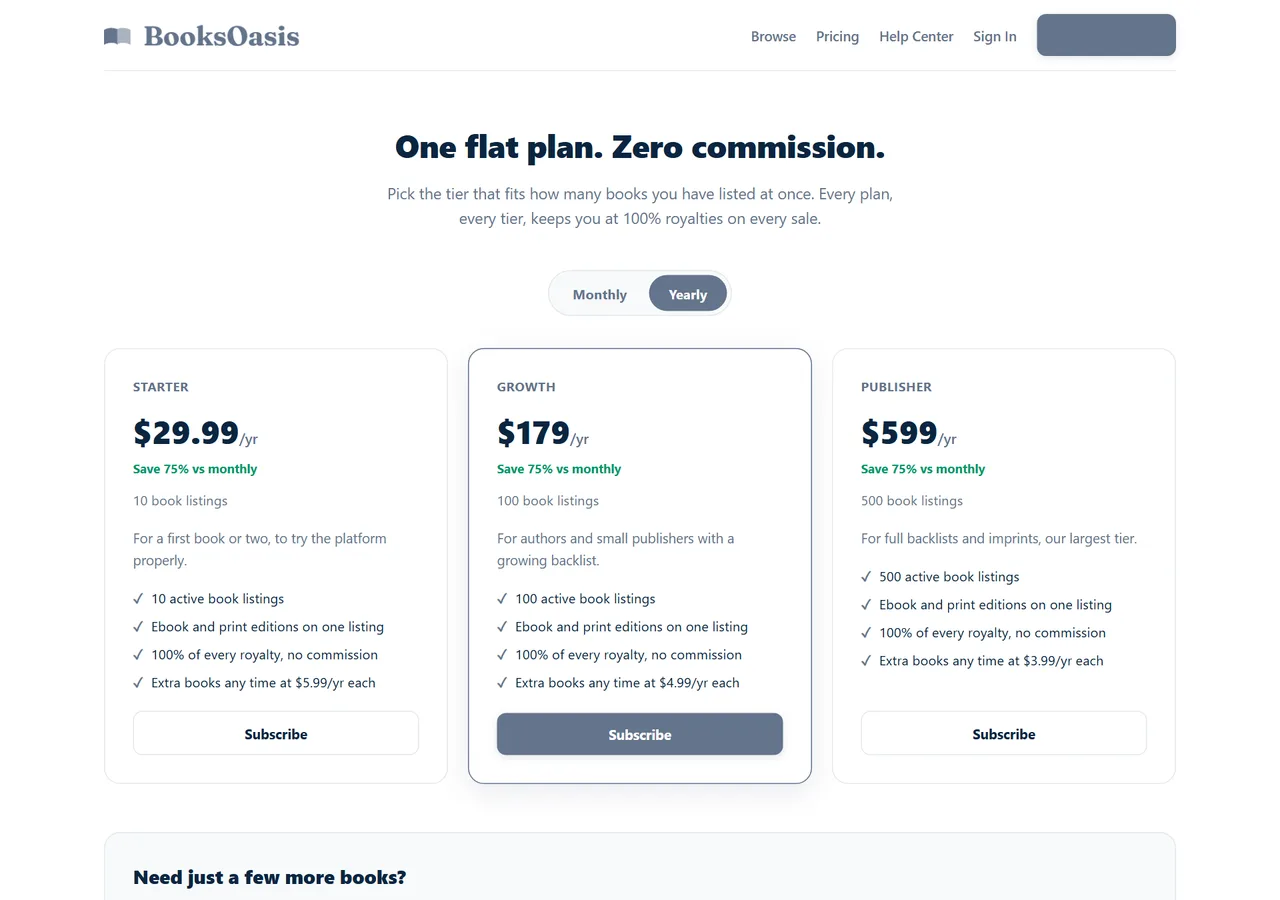
Publishing your EPUB on BooksOasis
- Upload your EPUB as the ebook edition; add paperback and hardcover PDFs to the same listing.
- Readers read instantly in Oasis Reader on any device.
- Keep 100% of the ebook price, for a flat plan from $29.99 a year.
Good to know: every book passes a short moderation review before it goes live.
See plans and pricingA formatting checklist
- Working on a copy, with formatting marks shown.
- No tabs, double spaces, blank lines or manual line breaks.
- Body text in Normal with a first-line indent.
- Chapter titles in Heading 1, each after a page break.
- Images inline, sensibly sized, with alt text.
- Short front matter; useful back matter with links.
- Converted to EPUB and checked in two apps and a validator.
In short
Good ebook formatting is mostly about structure. Strip out manual layout, apply a few simple styles, break chapters with page breaks, keep images inline, then convert to EPUB with a free tool and check the result on a real screen. Do that once, and every platform you publish on will show your book the way you intended.
Questions
Can Word save a file as an EPUB?
Word doesn't have a reliable built-in EPUB export. The usual route is to format the document with styles in Word, then convert it with a free tool such as Calibre, Reedsy Studio or Google Docs, or with Draft2Digital's formatter.
What is the difference between ebook and print formatting?
Ebooks reflow to fit any screen, so there are no fixed pages, page numbers or headers. Print books are laid out on fixed pages at a trim size, with margins, page numbers and headers.
What file format do I need for BooksOasis ebooks?
EPUB. Upload an EPUB file when you add an ebook edition to your book.
Should I use tabs or spaces to indent paragraphs?
Neither. Set a first-line indent in the paragraph style instead. Tabs and spaces often break or look uneven in ebooks.
How do I check my EPUB before publishing?
Open it in a couple of reading apps, check the table of contents and images, and run it through a validator such as EPUBCheck.
Do I need a table of contents in an ebook?
Yes, readers expect one, and many stores require a working table of contents. Most converters build it automatically from Heading 1 chapter titles.
Can I use the same file for print and ebook?
Usually you use the same Word manuscript but produce two outputs: a reflowable EPUB for the ebook and a fixed-layout PDF for print, each with the right settings.
Is Calibre safe and free?
Calibre is a long-established, free and open-source ebook manager that runs on Windows, Mac and Linux. Download it from its official website.
Should I justify text in my ebook?
You can set it in your styles, but many reading apps let readers choose alignment anyway. Left-aligned or justified both work; what matters is consistent styles.
How big should my EPUB file be?
Text-only novels are usually a few megabytes or less. Keep images compressed so the file stays small, which also reduces delivery costs on stores that charge by size.
Can I hire someone to format my ebook?
Yes. Freelance formatters convert manuscripts to EPUB and print PDF for a fee, which can be worth it for complex books with images, tables or poetry.
Upload your EPUB to BooksOasis
Readers open it instantly in Oasis Reader. You keep 100% of the price.