Using the cover calculator
The cover calculator gives you the exact size of your book cover and a template to design on, before you open a design tool. This guide walks through each setting, what the results mean, how to use the template in Canva and other tools, and how it saves you rounds of fixes.
The calculator is free and open to everyone at publish.booksoasis.com/cover-calculator. You don't need an account. You enter a few facts about your book, it fetches the exact cover size for that book from our printer, and you download a template with every print zone already drawn.
Why the cover size matters
A print cover is one flat image that wraps around the book: back cover, spine and front cover side by side, plus a little extra on every edge. The spine width depends on how many pages the book has, so two books with the same trim size can need different covers. A cover made at the wrong size gets stretched, cropped or rejected at the print check.
Working the size out by hand means looking up paper thickness, adding bleed on the right edges and converting between inches, millimeters and pixels. The calculator does all of it in one step and keeps the numbers in sync with what the printer actually requires.
Step 1: Enter your book information
The form follows the same order as the calculators most print services use, so it should feel familiar.
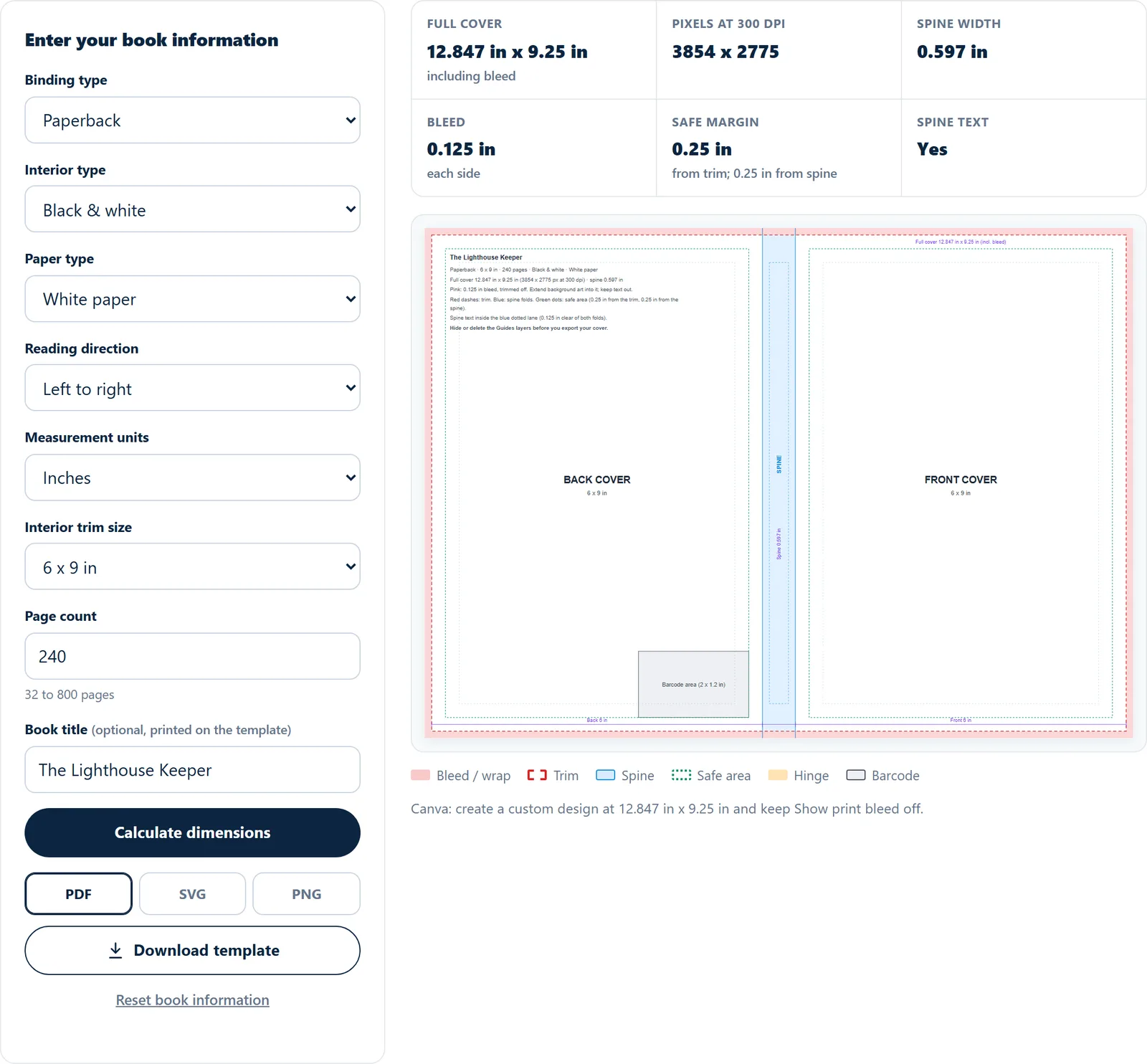
- Binding type. Paperback, Hardcover or Ebook. Hardcovers here are case laminate: the printed cover is wrapped around rigid boards.
- Interior type. Black and white, standard color or premium color.
- Paper type. White or cream. Cream is offered for black and white interiors only. The interior and paper never change the cover size, but the template records them so you always know which book it was made for.
- Reading direction. Left to right for most books. Right to left (for example Arabic, Hebrew or manga) puts the front cover on the left side of the wrap.
- Measurement units. Inches or millimeters. Every result and every label on the template follows this choice.
- Interior trim size. The size of your book's pages. Only sizes that can be printed are listed, so you can't pick a size that fails later.
- Page count. The number of pages in your finished interior PDF, at your trim size. Paperbacks take 32 to 800 pages and hardcovers 24 to 800.
- Book title. Optional. It is printed in the corner of the template, which helps when you design several books at once.
Results appear on their own about half a second after you stop typing. Calculate dimensions does the same thing straight away, and on a phone it scrolls you down to the results.
Step 2: Read the results
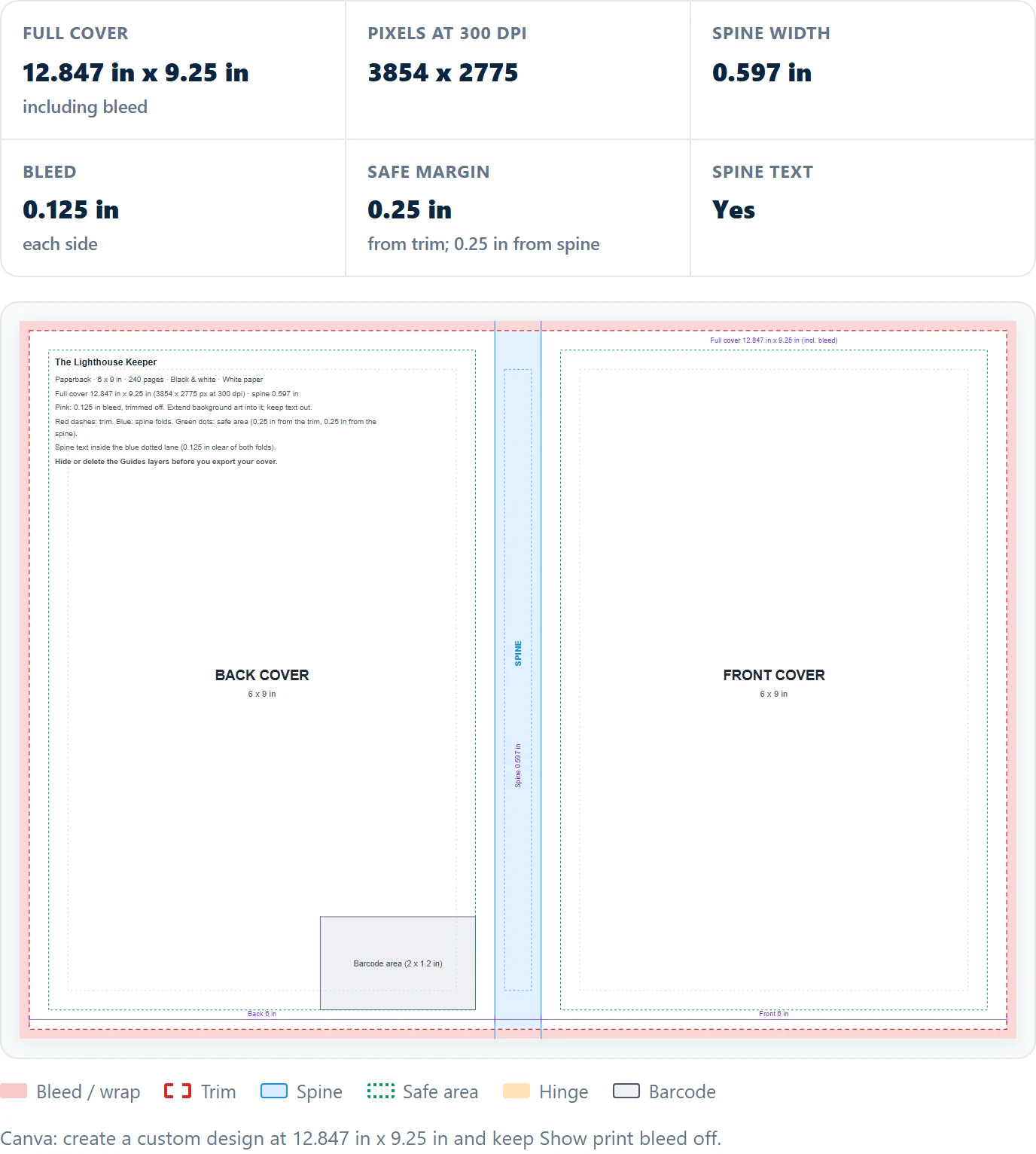
- Full cover. The width and height of the whole wrap, including bleed. This is the page size your finished cover PDF must be.
- Pixels at 300 dpi. The same size in pixels, for image editors and for checking that your artwork is sharp enough to print.
- Spine width. The width of the spine for your page count.
- Bleed (paperback) or Wrap (hardcover). The extra edge on every side. On a paperback it is trimmed off. On a hardcover it folds around the boards.
- Safe margin. How far titles, names and faces must stay from the trim, and from the spine fold.
- Spine text. Whether your book can have text on the spine. A spine needs more than 80 pages and at least 0.375 inches of width to carry text cleanly.
Below the results is a line telling you the exact custom size to use in Canva, which saves a step later.
Step 3: Choose a format and download
Pick a format under the button, then select Download template. Each format suits different tools:
| Format | Best for | How the guides arrive |
|---|---|---|
| Canva, Adobe Illustrator, Affinity Designer and Publisher, InDesign | Real vector shapes and text. In Illustrator, Affinity and Acrobat the guides sit on their own layers, so you can hide them in one click. Canva imports each line and label as its own element. | |
| SVG | Inkscape, Figma, Illustrator, Affinity | Named layers for the guides, plus an empty layer for your artwork. The file opens at its true size. |
| PNG | Any image editor, or Canva as a guide sheet | Lines and zones only, on a transparent background at 300 dpi, to place on top of your design while you work. |
What's on the template
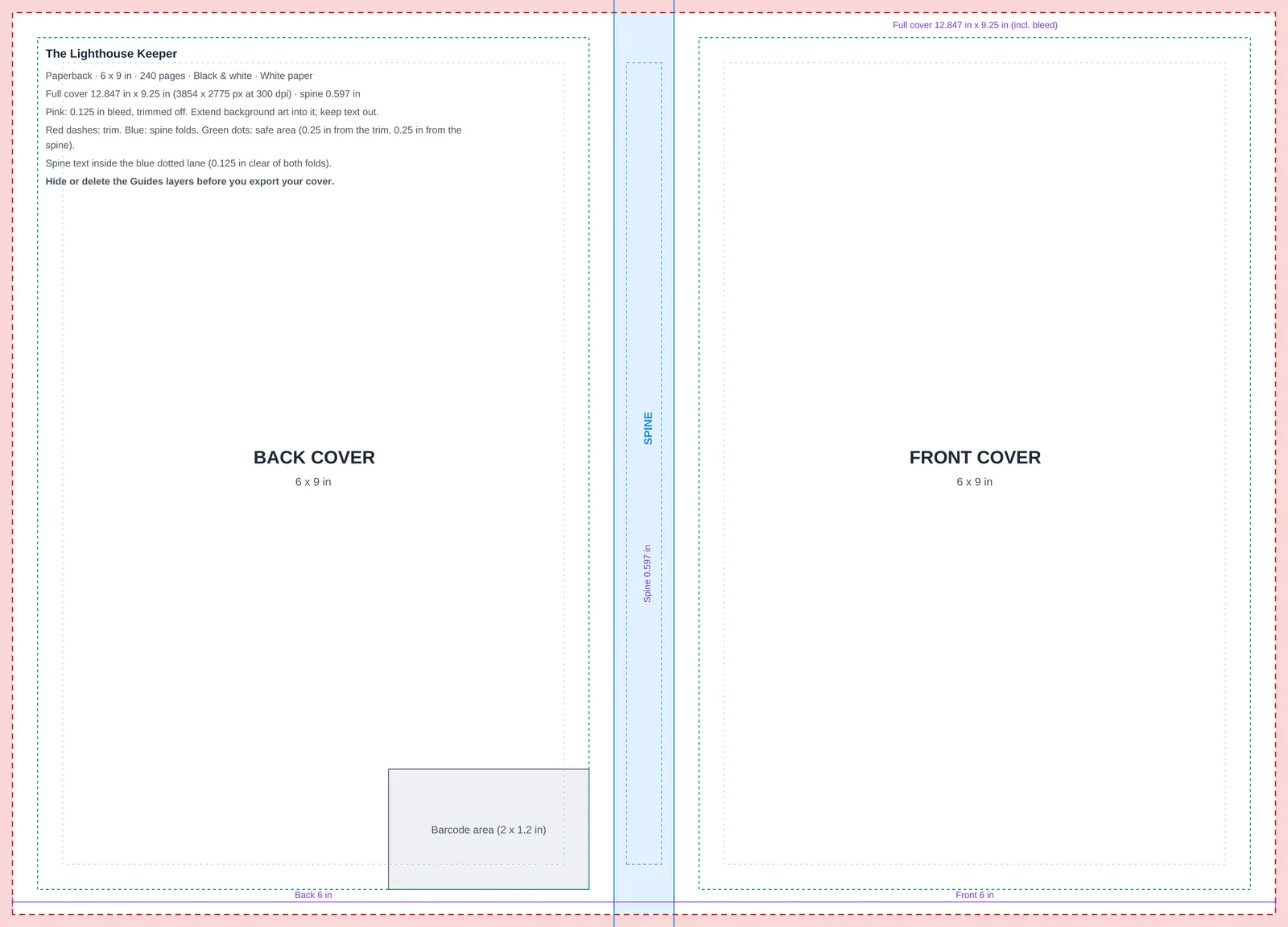
- Pink edge: the bleed or wrap. Extend your background art all the way into it, but keep text out.
- Red dashed line: the trim, where the finished book ends.
- Blue lines and band: the spine folds and the spine itself. A dotted blue lane inside it shows where spine text can go, when your book is thick enough.
- Green dotted lines: the safe area on the back and front covers. Titles, author names, faces and anything important stay inside.
- Pale green lines: a recommended line a little further in, for extra breathing room on paperbacks.
- Orange bands (hardcover only): the hinge, where the cover bends next to the spine. Keep it clear of text.
- Grey box: the barcode area, 2 x 1.2 inches at the bottom of the back cover. Leave it empty.
- Purple measurements: panel widths, spine width and full cover size, so you can check sizes without leaving your design tool.
The top corner of the back cover repeats the book's details and the key to the colors, so the file explains itself if you hand it to a designer.
Designing in Canva
- Download the PDF template.
- In Canva, upload the PDF and open it as a design. It opens at the full cover size.
- Place your artwork behind the guide elements, running the background into the pink edge.
- Keep your text inside the green lines and leave the barcode box empty.
- Delete the guide elements, then download as PDF Print.
The template already includes the bleed, so leave Canva's Show print bleed setting off. If you prefer to start from a blank design, create a custom size using the numbers on the line under the calculator's preview, and lay the transparent PNG on top as a locked guide layer.
Designing in Illustrator, Affinity, Inkscape or Figma
Open the PDF or SVG directly. Create your artwork on a new layer below the guides, or on the empty Artwork layer in the SVG. When you're done, hide or delete the guide layers and export a single-page PDF at the full cover size shown in the calculator. Keep images at 300 dpi at their printed size.
Hardcover covers
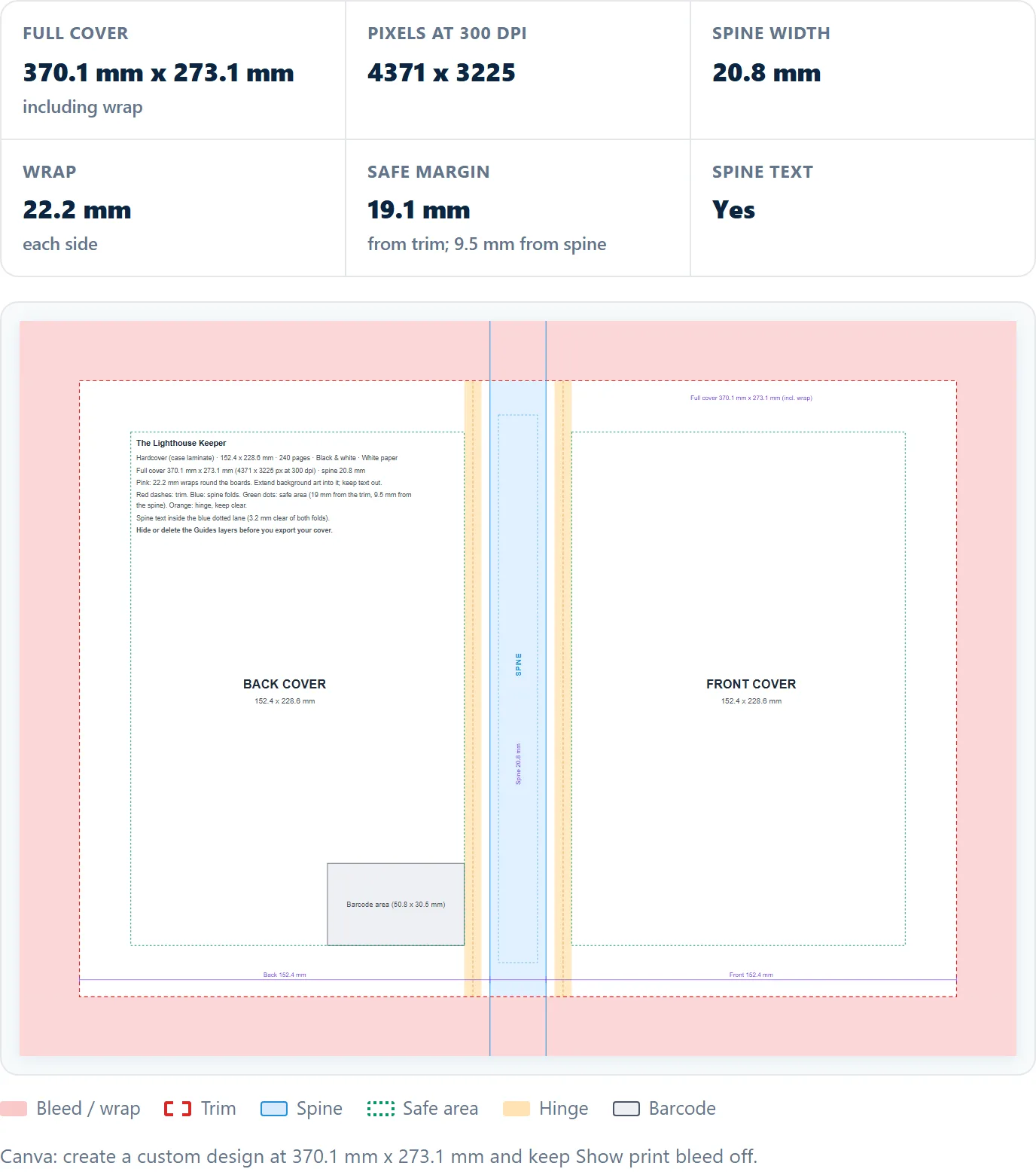
A hardcover's printed cover folds around rigid boards, so its edge is much wider than a paperback's bleed and its safe margin is wider too. Leave the orange hinge bands next to the spine free of text, because the cover bends there every time the book opens.
Ebook covers
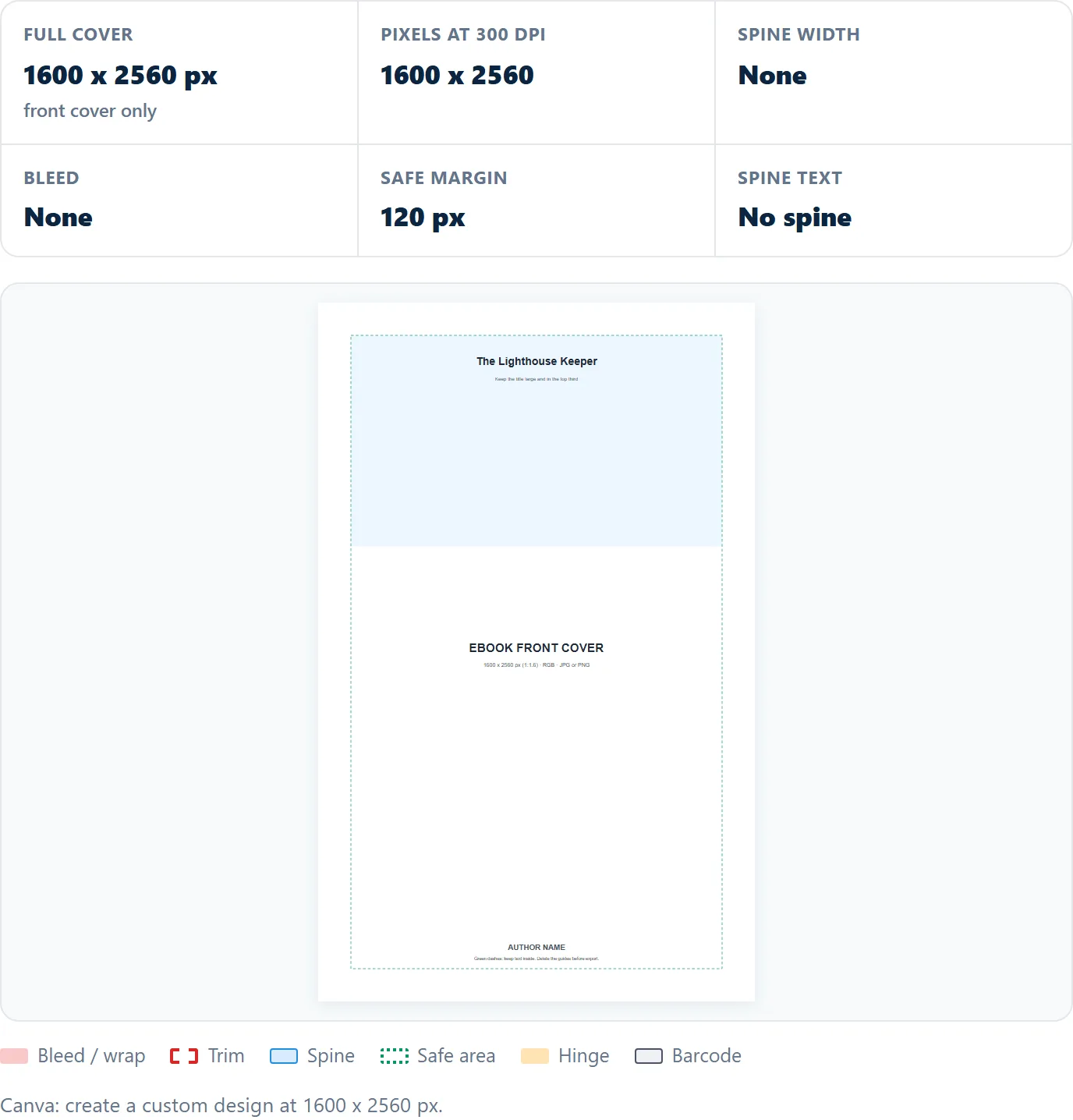
An ebook only needs a front cover. Choose Ebook as the binding type and the print settings disappear. The template is 1600 x 2560 pixels, the shape most stores use, with a safe area marked and a band showing where a large, readable title works best on small store thumbnails.
On your phone
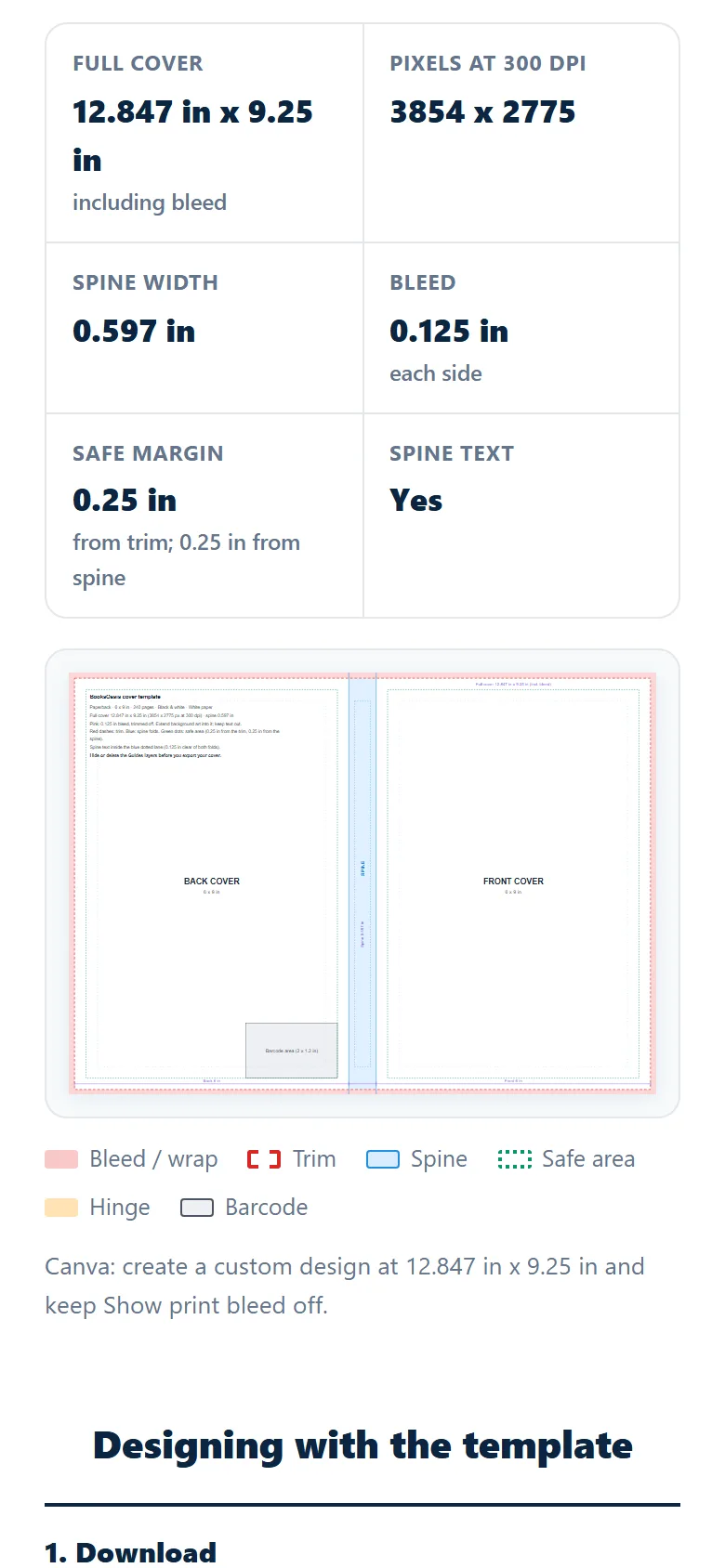
The calculator works the same on a phone. The results and the preview appear under the form, and downloads save to your phone ready to open in Canva's mobile app.
How it helps you publish faster
- No sums. Spine width, bleed and pixel sizes come straight from the printer for your exact book, so there is nothing to work out or get wrong.
- Right the first time. A cover designed on the template is already the size the print check expects, so it passes without being resized or sent back.
- Only printable choices. Every trim size and page count the calculator accepts can be printed, so you never design around a size you can't publish.
- Less back and forth with designers. The template carries the book's details and a color key, so a designer can start without a long brief.
- Every tool you already use. PDF, SVG and PNG cover Canva, Adobe, Affinity, Inkscape and Figma, so you can keep your usual workflow.
Tips
- Format your interior before you design the cover. If the page count changes, enter the new count and download a fresh template, because the spine width changes with it.
- Templates are sized for BooksOasis printing. Other print services measure their paper and boards differently, so their cover sizes differ slightly. Artwork kept inside the green safe lines moves easily to another size.
- Already listing a book with us? Your dashboard shows the cover size for each print format, with the same template in PDF, SVG and PNG.
Ready to size your cover?
Free, no account needed.